AI 3D Model Generator from Images
Turn a visual idea into a starting mesh. Modzi3D brings reference preparation, generation status, model previews, and your project library into one workflow.

Turn your reference image into 3D
Choose Base or Pro and review the credit cost before submitting. Your completed GLB is saved in your account.
An asset pipeline you can inspect
Treat generation as one step between a clear reference and a verified asset.
01 · Prepare
Select a supported image and an object with a readable outline. Decide where the model will be used.
02 · Generate
Review the account allowance, geometry, textures and displayed cost before confirming the request.
03 · Inspect
Look for merged parts, weak details, missing surfaces and incorrect proportions. A completed task still needs review.
04 · Continue
Use an available file format for editing or printing preparation once download access is unlocked.
Choose a subject with a readable shape
Start with a single object, character, or prop. A full view with a simple background makes it easier to distinguish the object from its surroundings. For a first project, choose substantial shapes rather than transparent surfaces or tiny disconnected pieces.
Our example gallery provides concept references for robots, figurines, furniture, fantasy props, and other subjects. These images illustrate starting ideas; they are not proof of a particular generated result.
Set the geometry and texture options
The studio shows the available geometry settings and whether textures are included. Review the cost before you confirm a credit-based request. Your account records the generation status and credit movement.
A higher-detail setting does not certify accuracy, topology quality, or suitability for manufacturing. Choose settings based on your intended use and inspect the output rather than treating the label as a guarantee.
Inspect the output before using it
Check hidden surfaces, the underside, thin parts, and the overall silhouette. Compare the result with your reference. You may need to adjust materials, simplify geometry, repair holes, or remodel details.
For animation, expect separate rigging and weighting work. For a game, test scale, orientation, materials, and performance in the target engine. For printing, run the model through a print-preparation workflow.
Choose a plan and create your model
Sign in with a verified account, choose an active plan, and review your available credits. Select Base for creative exploration or Pro for textured PBR models. The studio displays the credit cost before you submit.
Live availability is shown in the studio. Paid generation uses the credit balance associated with your account. Your existing projects and their status remain accessible in the dashboard.
Common questions
Explore related guides
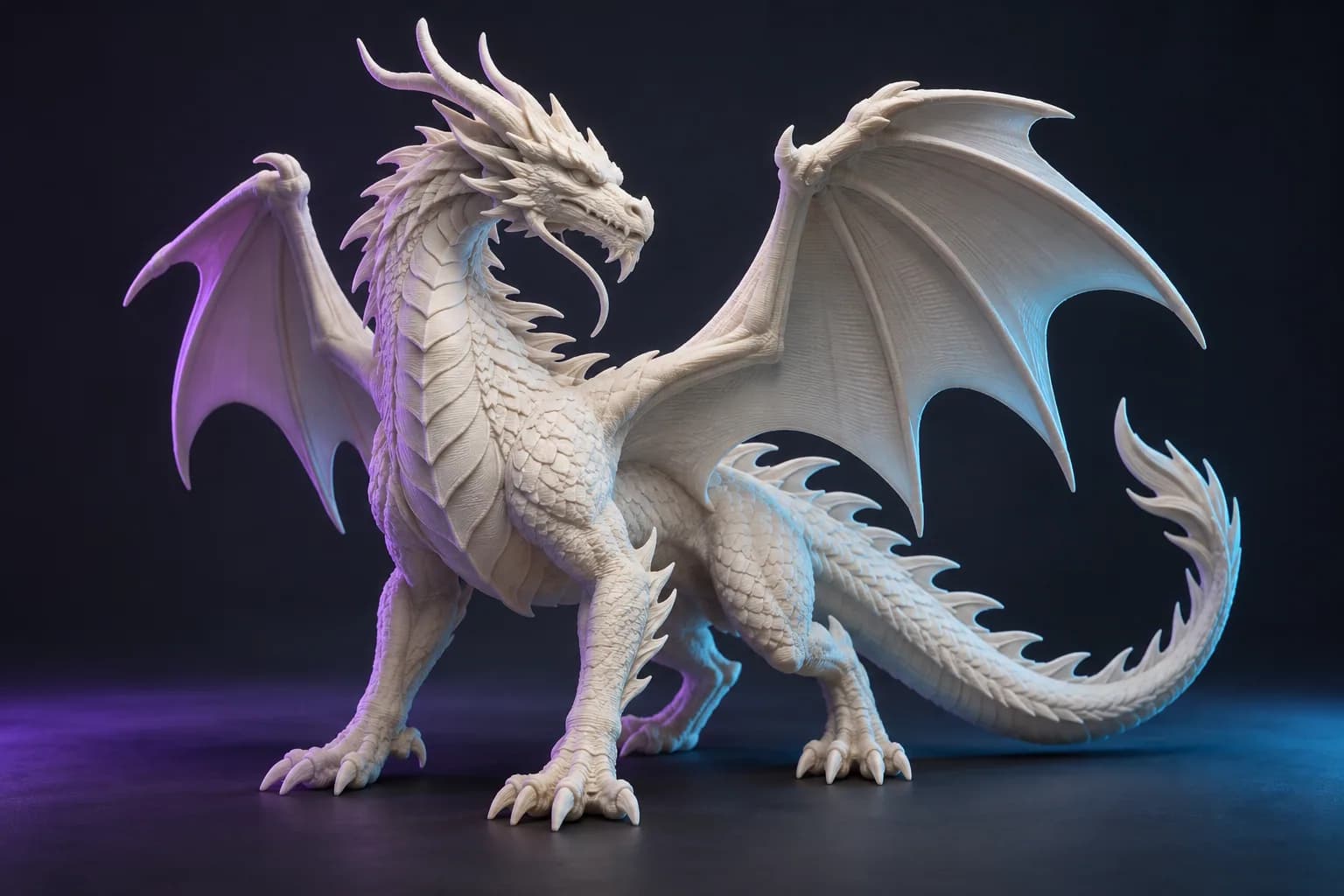
AI 3D Model Generator: Free Trial & Credit Guide
Explore the 3-day image-to-3D trial, card requirement, subscription billing and export costs. Prepare your reference and review Base and Pro before generating.
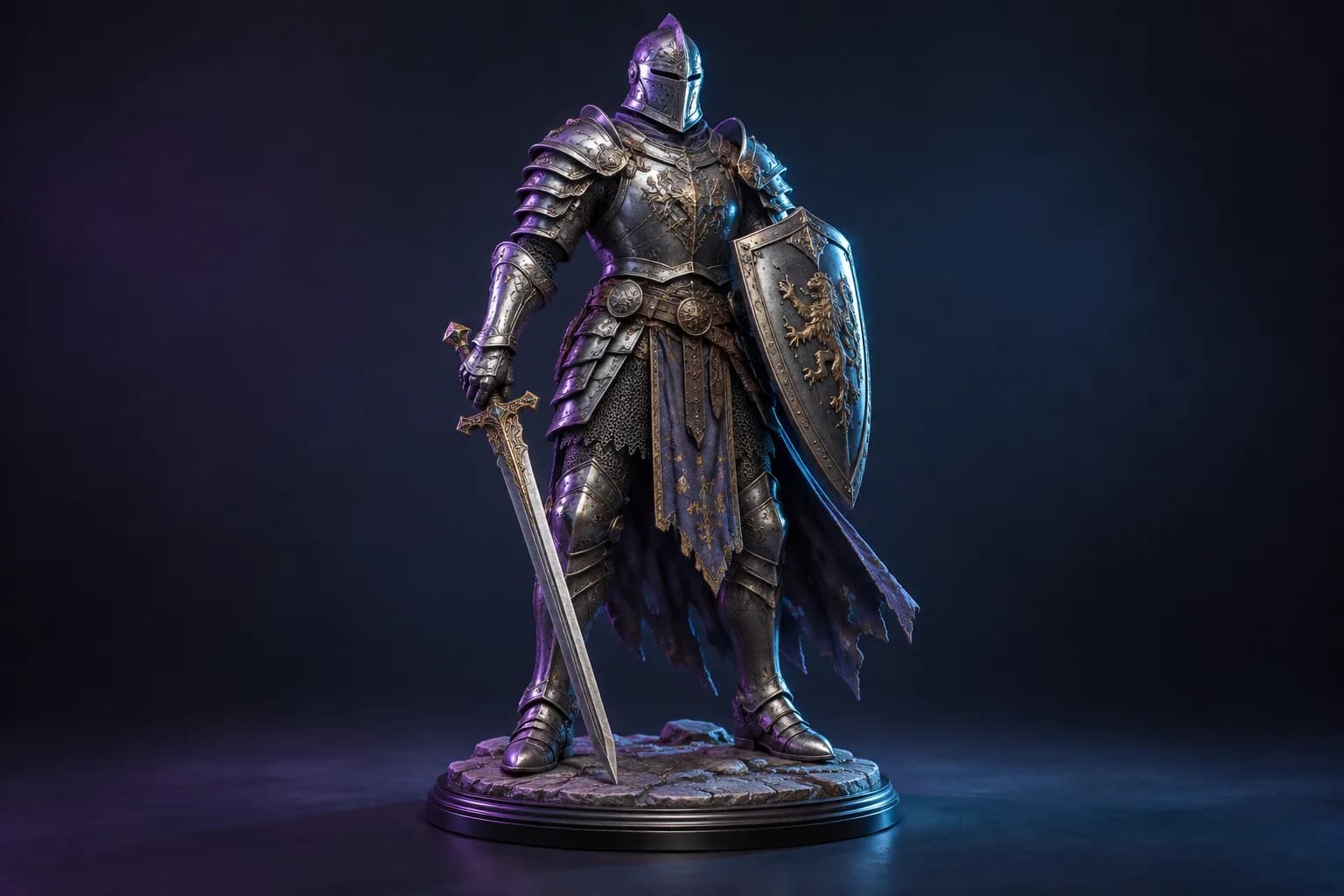
3D Model for 3D Printing: From Reference to Slicer
Prepare a 3D model for a 3D printer: inspect geometry, set scale, check wall thickness, and preview supports before printing.
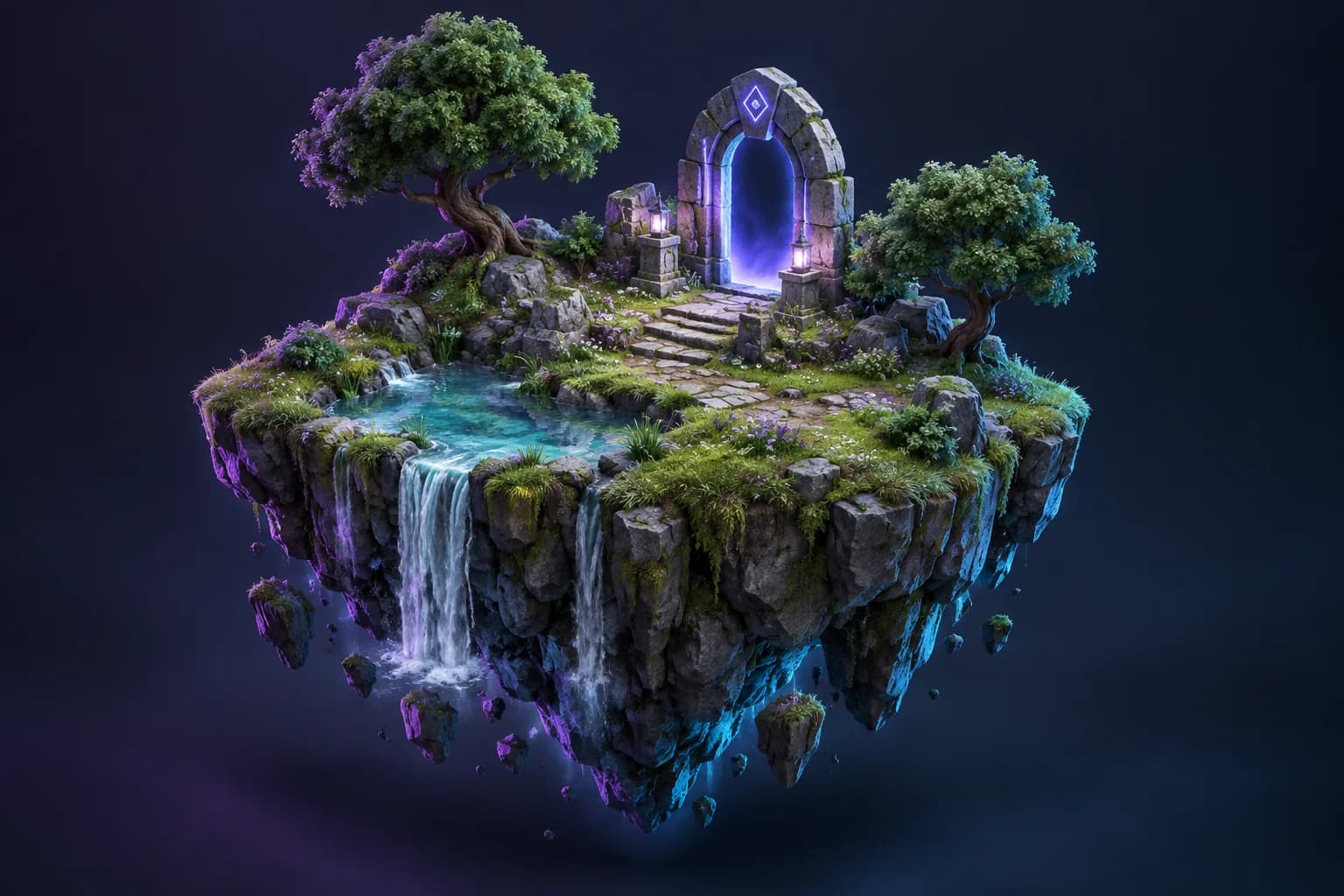
Create a 3D Model from a Picture
Learn how to create a 3D model from a photograph, choose a useful view, and understand the difference between single-image AI and multi-photo capture.